
✅ How to Create User Types
User types help categorize employees, such as full-time, part-time, or contractors.
Steps:
- Go to Staff™ → User Types in the left-hand menu.
- Click Create User Type.
- Enter:
- Name (example: Full-Time, Hourly Employees, Contractors)
- Optional Description
- Click Save.
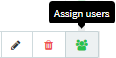
- Assign users by clicking Assign Users under Actions.
✅ How to Create Departments
Departments organize employees based on your company structure. This is useful for reporting and applying settings across teams.
Steps:
- Go to Staff™ → Departments.
- Click Create Department.
- Enter:
- Name of the department
- Choose a color to represent the department (can display in Time-Off™ calendar)
- Click Save.
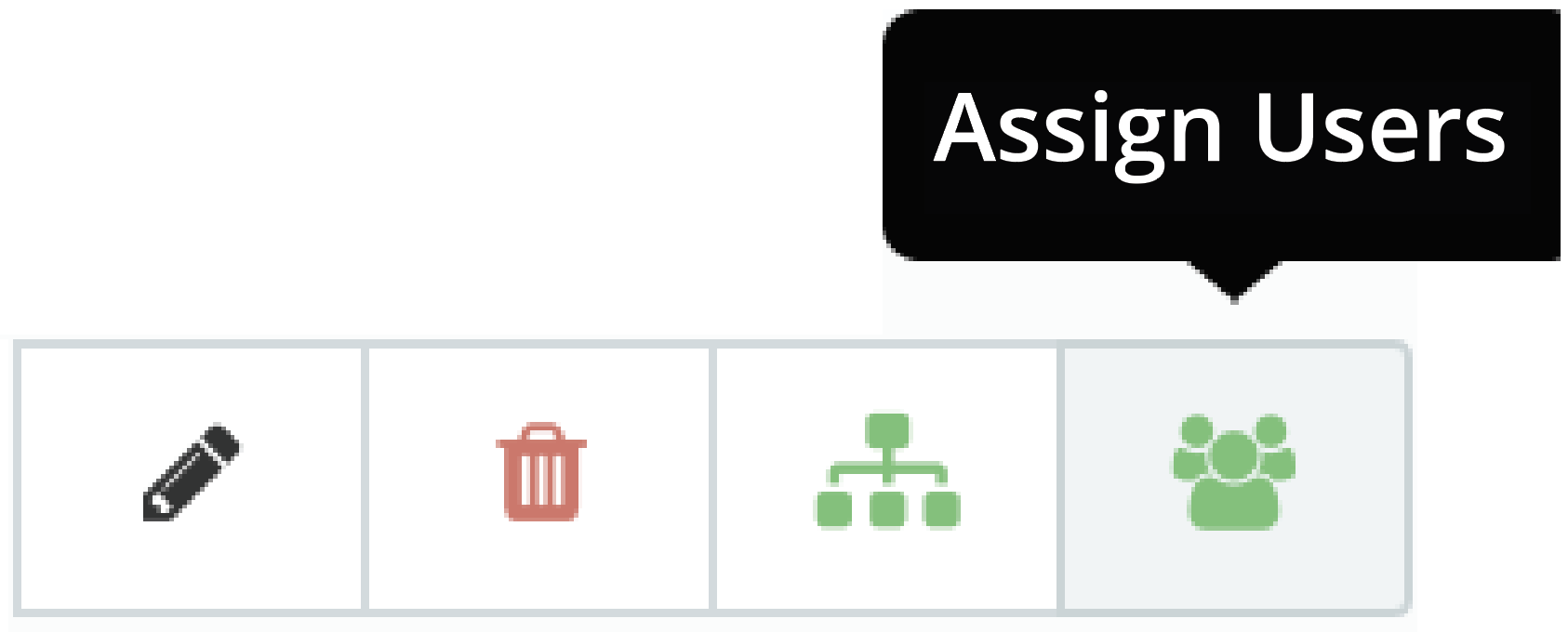
- Assign users by clicking Assign Users under Actions.
Find out how to assign managers to users here.
✅ How to Create Offices
Offices represent different company locations. By default, new users are assigned to Head Office.
Steps:
- Go to Staff™ → Offices.
- Click Create Office.
- Enter:
- Name (example: city or town where the office is located)
- Click Save.
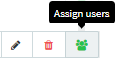
- Assign users by clicking Assign Users under Actions.
Tip: Paid holidays can be assigned based on office location, which is helpful for companies with offices in different countries.