
How to Integrate PurelyHR with Azure Active Directory (Azure AD)
Integrating PurelyHR with Azure AD provides key benefits for your organization:- Control who has access to PurelyHR through Azure AD.
- Enable Single Sign-On (SSO) so users can log in with their Azure AD accounts.
- Manage accounts centrally in the Azure portal.
Prerequisites
- An Azure AD subscription.
- A PurelyHR subscription with SSO enabled.
- A test environment (recommended).
- Do not use your production environment, unless it is necessary.
- If you don’t have an Azure AD trial, you can get a one-month trial here.

Scenario Overview
This tutorial covers:
- Adding PurelyHR from the gallery
- Configuring and testing Azure AD single sign-on
Step 1: Adding PurelyHR from the Gallery
To configure the integration of PurelyHR into Azure AD, you need to add PurelyHR from the gallery to your list of managed SaaS apps.
-
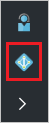
In the Azure portal, on the left navigation panel, click Azure Active Directory icon.
-
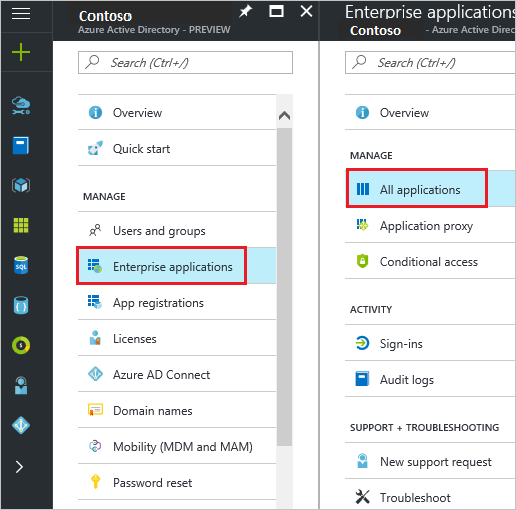
Navigate to Enterprise applications. Then go to All applications.
-
To add new application, click New application button on the top of dialog.

-
In the search box, type PurelyHR.

-
In the results panel, select PurelyHR, and then click Add button to add the application.

Step 2: Configuring and Testing Azure AD Single Sign-On
In this section, you configure and test Azure AD single sign-on (SSO) with PurelyHR using a test user called Britta Simon.For SSO to work, Azure AD needs to know the corresponding user in PurelyHR. This means creating a link relationship between an Azure AD user and the related PurelyHR user.
In PurelyHR, assign the Azure AD username as the Username in PurelyHR to establish this link.
Building Blocks
To configure and test Azure AD SSO with PurelyHR complete these steps:-
- Configuring Azure AD Single Sign-On - Enable the feature in Azure.
- Creating an Azure AD test user - For testing (Britta Simon).
- Creating a PurelyHR test user - Counterpart of Britta Simon.
- Assigning the Azure AD test user - Grant access to PurelyHR.
- Testing Single Sign-On - Verify the configuration.
Configuring Azure AD Single Sign-On
Perform the following steps in the Azure portal:
-
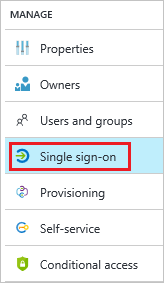
On the PurelyHR application integration page, click Single sign-on.
-
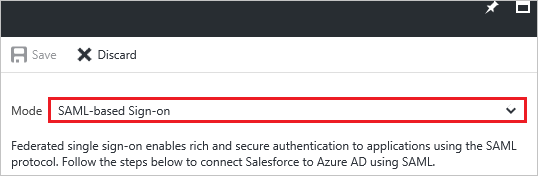
On the Single sign-on dialog, select Mode: SAML-based Sign-on.
-
On the PurelyHR Domain and URLs section, perform the following steps if you wish to configure the application in IDP initiated mode:

In the Reply URL textbox, type a URL using the following pattern: https://<companyID>.purelyhr.com/sso-consume
-
Check Show advanced URL settings, if you wish to configure the application in SP initiated mode:

In the Sign-on URL textbox, type the value using the following pattern: https://<companyID>.purelyhr.com/sso-initiate

These values are not the real. Update these values with the actual Reply URL and Sign-On URL. Contact PurelyHR Client support team to get these values.
-
On the SAML Signing Certificate section, click Certificate (Base64) and then save the certificate file on your computer.

-
Click Save button.

-
On the PurelyHR Configuration section, click Configure PurelyHR to open Configure sign-on window. Copy the SAML Entity ID and SAML Single Sign-On Service URL from the Quick Reference section.

-
To configure single sign-on on PurelyHR side, login to their website as an administrator.
-
Open the Dashboard from the options in the toolbar and click SSO Settings.
-
Paste the values in the boxes as described below-
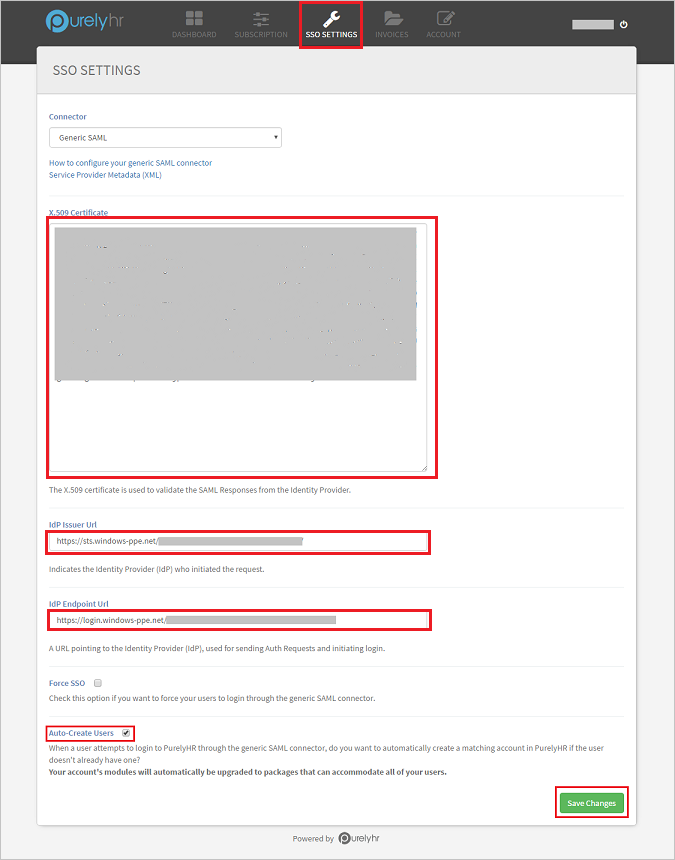
a. Open the Certificate(Bas64) downloaded from the Azure portal in notepad and copy the certificate value. Paste the copied value into the X.509 Certificate box.
b. In the Idp Issuer URL box, paste the SAML Entity ID copied from the Azure portal.
c. In the Idp Endpoint URL box, paste the SAML Single Sign-On Service URL copied from the Azure portal.
d. Check the Auto-Create Users checkbox to enable automatic user provisioning in PurelyHR.
e. Click Save Changes to save the settings.
Tip: You can now read a concise version of these instructions inside the Azure portal, while you are setting up the app! After adding this app from the Active Directory > Enterprise Applications section, simply click the Single Sign-On tab and access the embedded documentation through the Configuration section at the bottom. You can read more about the embedded documentation feature here: Azure AD embedded documentation
Creating An Azure AD Test User
The objective of this section is to create a test user in the Azure portal called Britta Simon.

To create a test user in Azure AD, perform the following steps:
-
In the Azure portal, on the left navigation pane, click Azure Active Directory icon.
-
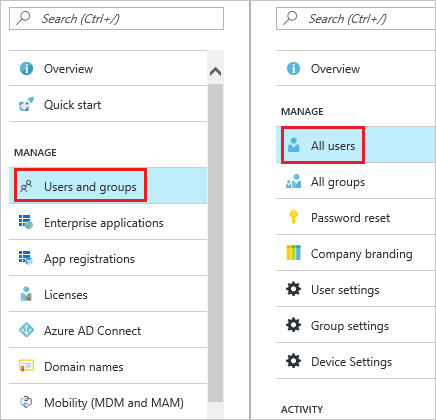
To display the list of users, go to Users and groups and click All users.
-
To open the User dialog, click Add on the top of the dialog.

-
On the User dialog page, perform the following steps:
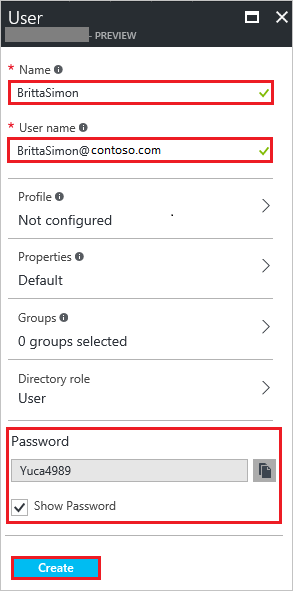
a. In the Name textbox, type BrittaSimon.
b. In the User name textbox, type the email address of BrittaSimon.
c. Select Show Password and write down the value of the Password.
d. Click Create.
Creating a PurelyHR Test User
To enable Azure AD users to log in to PurelyHR, they must be provisioned into PurelyHR. In PurelyHR, provisioning is an automatic task and no manual steps are required when automatic user provisioning is enabled.
Assigning the Azure AD Test User
In this section, you enable Britta Simon to use Azure single sign-on by granting access to PurelyHR.

To assign Britta Simon to PurelyHR, perform the following steps:
-
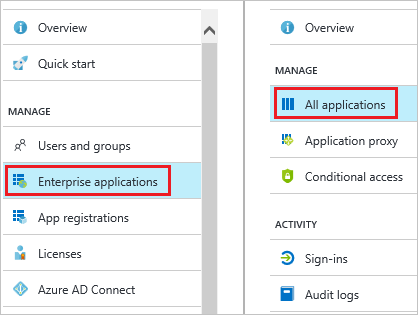
In the Azure portal, open the applications view, and then navigate to the directory view and go to Enterprise applications then click All applications.
-
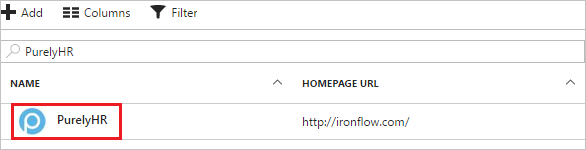
In the applications list, select PurelyHR.
-
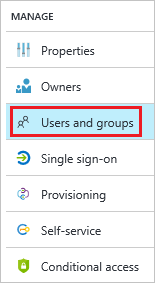
In the menu on the left, click Users and groups.
-
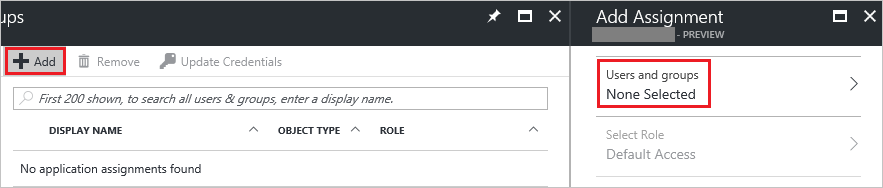
Click Add button. Then select Users and groups on Add Assignment dialog.
-
On Users and groups dialog, select Britta Simon in the Users list.
-
Click Select button on Users and groups dialog.
-
Click Assign button on Add Assignment dialog.
Testing Single Sign-On
In this section, you will test your Azure AD Single Sign-On (SSO) configuration using the Access Panel.- Sign in to the Azure Access Panel.
- Click the Absorb LMS tile.
- You should be automatically signed in to your Absorb LMS application.