
What is MFA in PurelyHR?
- Multi‑Factor Authentication (MFA) adds an extra security step to the login process. In addition to a password, users must verify their identity using either an authentication app or a one‑time code sent by email.
-
For step‑by‑step instructions on enabling MFA, see this article: How to Enable Multi‑Factor Authentication (MFA) in PurelyHR.
This FAQ is intended to complement that guide by explaining rollout behavior, enforcement, emails, and support workflows specific to administrators.
Rolling Out MFA to Employees (Forced Enforcement)
-
What happens if "Roll out MFA for your staff" is 🚫disabled?
- MFA applies only to administrators
- Employees will not be prompted to set up MFA
- This mode is useful for testing or admin‑only security
- What happens if "Roll out MFA for your staff" is ✅enabled?
- MFA becomes mandatory for all employees
- Employees are forced to set up MFA at next login
- MFA cannot be skipped
Authentication Methods
- What methods can admins allow?
- Authenticator App (e.g., Google Authenticator, Authy)
- Email Authentication (one‑time code sent to user’s email)
- What about users without email addresses?
- If the “Allow users without email” setting is enabled:
- Users without email must use an authentication app
- Email authentication will not be available for those users
- Admins should review employee profiles before enforcing MFA.
- If the “Allow users without email” setting is enabled:
MFA Emails (Admin Awareness)
- MFA Enrollment Success Email
- Sent to users after successful MFA setup
- Confirms that an MFA method was added
- Acts as a security alert
- “User Unable to Authenticate Account” Email
- Sent to admins when a user requests MFA help
- Includes a View Profile in PurelyHR button
- Requires admin action to reset MFA
Resetting MFA for a User (Admin Action Required)
- When should MFA be reset?
- User lost their authentication device and/or all backup codes
- User cannot complete MFA login
- How to reset MFA enrollment
- Search for the affected user’s profile (via email link or Staff module)
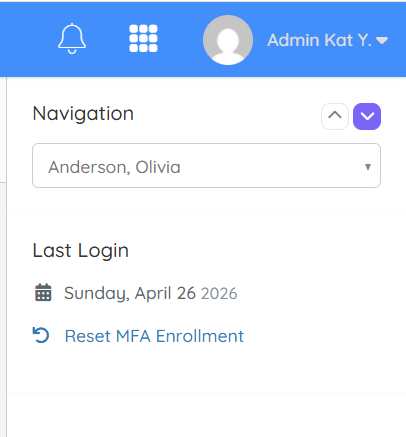
- In the right‑hand pane, Click Reset MFA Enrollment to successfully reset MFA.
- ✅ User will be prompted to re‑enroll MFA on next login
- ✅ Backup codes will be regenerated
Need Help? If you have questions about MFA configuration or enforcement, feel free to contact PurelyHR Support.